Connection
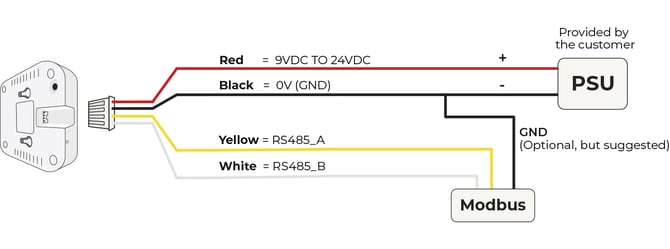
This version uses a PH4 Cable to expose the power and RS485 interface.
Configuration
There are two setup methods:
Optional setup via the Cuby App — only if you plan to use the mobile app.
Standard setup (Web interface) — the default configuration method.
Optional setup through the Cuby App:
1. Download the Cuby Smart App.
a. iOS http://cuby.mx/app/ios
b. Android http://cuby.mx/app/android
2. Create an account and login.
3. Ensure that the Cuby is plugged into a power outlet.
4. Observe the LED indicator on the front of the Cuby, it should be blue.
Standard setup: configure Cuby MODBUS:
Hold down the button on the back of the Cuby for about 10 seconds until the LED indicator
lights up pink, signaling that it’s in setup mode.
On your mobile device or computer, go to WiFi settings and look for a network called “Cuby_XXXXX “ where “XXXXX” will be replaced by the Cuby’s MAC address.
Open a web browser on your device and enter the following address in the address bar: 192.168.4.1
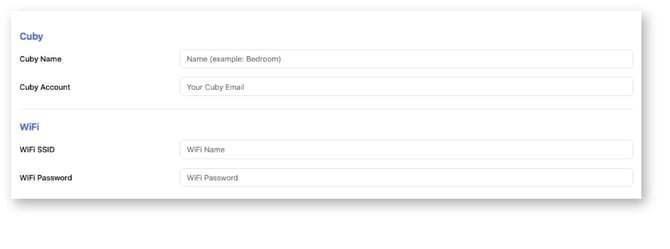
Complete the required information in the Cuby configurator.
1.- WiFi Settings (Optional, only if you want to use the Cuby App).
-
Cuby Name: This defines the name that will appear inside the Cuby App, it will help you identify which Cuby is which.
-
Cuby Account: Type here the email you use to login into the Cuby App.
-
WiFi SSID: Type the WiFi name
-
WiFi Password: Type the WiFi Password.
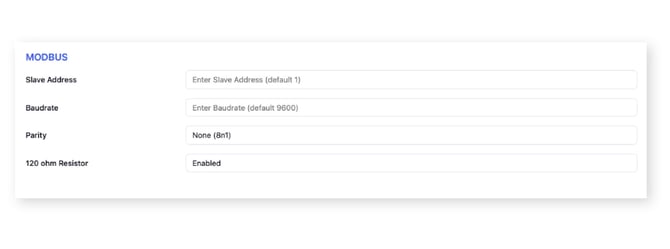
2.- MODBUS Settings:
-
Slave Address: This is the Cuby Modbus address (defaults to 1)
-
Baudrate: The Rs485 Baudrate (defaults to 9600 bps)
-
Parity: The RS485 Parity (defaults to 8n1)
-
120 ohm Resistor: Only enable this resistor if the Cuby is the last device on the RS485 Network. Ensure that only 2 devices on the network (including the master) have the 120 ohm resistor enabled. This settings activates and deactivates the termination 120 ohm resistor on the bus.
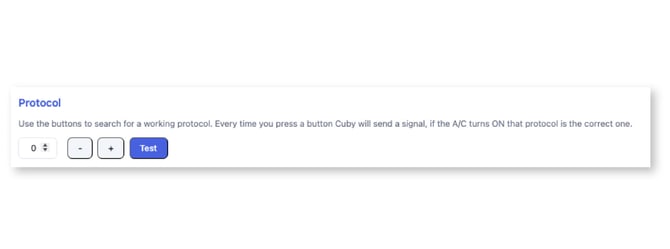
3.- Protocol:
This will help you look for a working Infrared protocol. You can increment/decrement the protocol number (Protocol ID) to look for a working protocol. Each time you move to a different protocol, press the TEST button so that the Cuby sends an IR signal. If the A/C BEEPs or Turns ON then that protocol is the correct one.
Take note of the Protocol ID that worked, that one needs to be configured in the REIRI App when you add a Cuby device. The selected protocol will also be saved in the Cuby Memory.
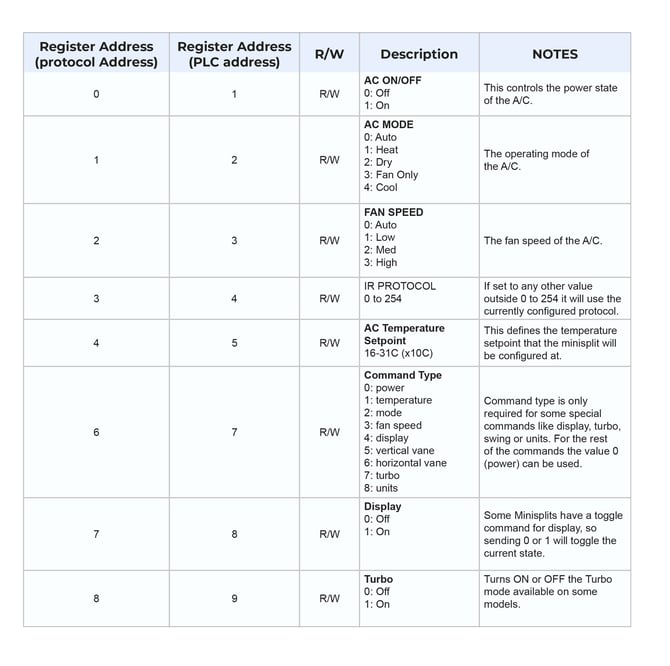
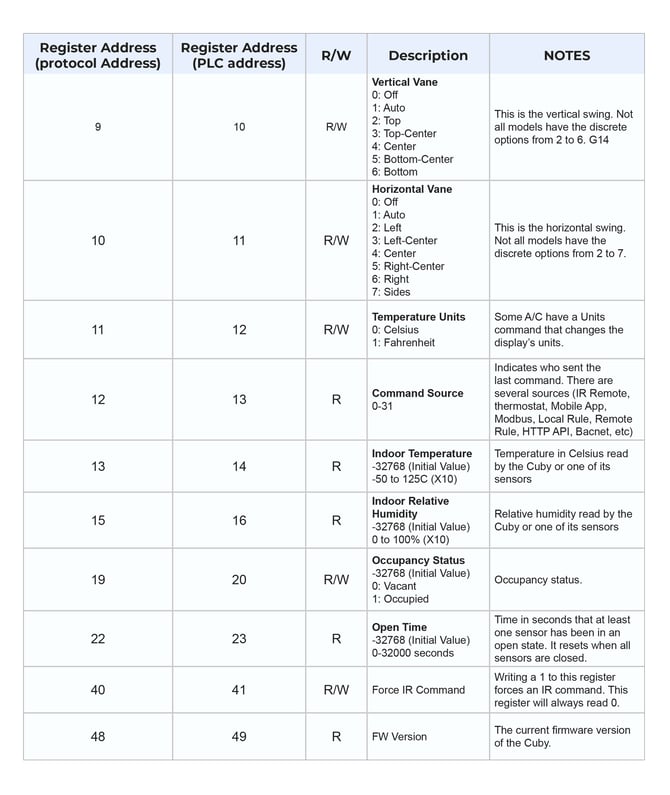
Modbus Registers
Currently this device uses the fixed Address 1. On the next firmware release we will allow for dynamic setting of the address as well as different register map and other customizable features (baud rate, etc).
Serial configuration is 9600 8n1.